That play was insane — and already gone.Gaming
One keystroke saves the last 30 seconds. No OBS running all evening, no full session to trim.
NiCorder records your screen continuously — save the last 15 seconds to 5 minutes with one keystroke. No manual start, no missed moment.
Free · macOS 13+ · No subscription
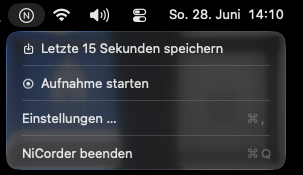
Lives in the menu bar. Click the N or press ⌘⇧↩ to save up to the last 5 minutes.
NiCorder sits as a small "N" in the menu bar, recording silently. No dock icon, no interruption — you don't notice it until you need it.
You don't record ahead — you record back. One keystroke and the last 15 seconds to 5 minutes land as MP4 on your hard drive.
No cloud, no account, no uploads. NiCorder saves exclusively locally — on your Mac, in your Movies folder.
Recordings are real MP4 files in H.264 — playable directly in QuickTime, VLC, or iMovie. No proprietary format, no export step.
NiCorder communicates with no server, collects no user data and sends nothing outward — except an optional update check you can see at any time in settings.
15 seconds to 5 minutes — you set how far back you can go.
⌘⇧↩ saves from any app. No switching, no clicking.
VideoToolbox compresses once. No quality loss when saving.
Record the entire screen, a single window or a custom crop.
System audio can optionally be recorded and included in the MP4.
NiCorder checks for new versions on startup and installs them on request.
Download NiCorder.pkg, run the installer, launch from Applications.
macOS asks once for screen recording. Allow — restart the app. Done.
NiCorder runs in the background. ⌘⇧↩ saves the last seconds as MP4.
NiCorder is a free macOS menu bar app — a screen dashcam for your Mac. It records continuously in the background and lets you save the last 15 seconds to 5 minutes as an MP4 with one keystroke.
No. NiCorder continuously records your Mac screen and saves clips on demand — like a dashcam, but for your desktop. It is not a player for SD cards or in-car dashcam videos.
Yes. Download it from NiCorder.pkg at no cost. No subscription, no account, no in-app purchases.
macOS 13 Ventura or newer. Download only from the official site nicorder.app.
Download NiCorder.pkg, run the installer, and follow the steps. NiCorder lands in Applications automatically. Step-by-step: Guide.
No. NiCorder is signed with an Apple Developer ID and notarized. The PKG opens and installs normally — no right-click → Open workaround. macOS verifies the signature before installation.
No — absolutely not. NiCorder works 100% locally on your Mac. Screen content is never uploaded; there is no cloud and no user-data collection. Feel free to verify with a firewall like Little Snitch or LuLu: recording produces zero outbound traffic.
Yes. Recording, saving clips, and all core features work completely offline. The only optional network contact is an update check on startup or when you tap Check for Updates in settings — a small version.json from nicorder.app.
NiCorder is signed and notarized by Apple — every release passes Apple's automated security and malware scans. There are no hidden commercial interests: I built it for my son Niki so he could capture gameplay easily. It runs on our family Macs every day — security comes first.
Yes. Written in Swift with ScreenCaptureKit for capture, VideoToolbox for H.264 encoding, and AVFoundation for export. No Electron, no bundled FFmpeg runtime — just native macOS APIs.
Usually yes for screen recorders — but NiCorder is built for low overhead. ScreenCaptureKit uses hardware-accelerated capture paths; VideoToolbox encodes on the GPU. CPU load stays minimal. Tuned for gaming — it should not noticeably hit your frame rate.
No. NiCorder uses a smart in-memory ring buffer: you pick 15 seconds to 5 minutes, and older frames are discarded automatically. Nothing piles up on disk while recording. Only clips you explicitly save — via hotkey or menu bar — are written as MP4 files.
Press ⌘⇧↩ or click the N in the menu bar. NiCorder exports the last seconds from the buffer as a permanent MP4 — no need to pause your game or switch apps. The global hotkey needs Accessibility permission in System Settings.
Screen Recording (required). Accessibility for the global hotkey in other apps. Optional: Microphone if you enable system audio. After granting Screen Recording, quit and relaunch NiCorder once.
By default in your Movies folder (~/Movies). Change the path anytime in NiCorder settings.
Yes. NiCorder was built because we needed an app like this ourselves. It's a passion project — no subscriptions, no ads, no tracking. My son and I use it daily, so keeping it stable and macOS-compatible is in our own interest.